
Examples
Does my device have an active SHS subscription?
Section titled “Does my device have an active SHS subscription?”Send a GET request to the smartlock endpoint. The response will contain a currentSubscription object.
// ... "currentSubscription": { "type": "B2C", "state": "ACTIVE", "creationDate": "2025-01-17T10:05:09.345Z" }// ...The state "ACTIVE" in this example shows that SHS is active.
The creationDate refers to when the subscription was activated; SHS is valid for one year from this date. Once the subscription is no longer active, the state will change to "INACTIVE"
If you attempt to perform actions on a smart lock which does not have an SHS subscripton, the API will return an error:
{ "error": "No active Smart Hosting subscription for the Smart Lock, please get one!"}Create access for my guest
Section titled “Create access for my guest”Firstly, we’re going to create an accountUser for your guest. This will include a few details, such as their name, e-mail address and preferred language. The e-mail and correct language are important to communicate the check-in instructions with the guest correctly.
When you create the accountUser, you will receive an accountUserId in the response which we will need in the next steps. We will assign the access to this accountUser.
Example
We will now create a smartlockAuth for your guest, which will grant them access to your property. Here are a few recommendations from us:
- If you have one smart lock in your property, use the dedicated smartlockAuth endpoint for that smart lock
- If you have more than one device in your property, such as an opener and a smart lock, use the generic smartlockAuth endpoint, as you can create access to both devices in one request (you can specify multiple device IDs in the request body)
- You probably don’t want your guests to unlock your devices remotely, so set
remoteAllowedtofalse - Use an appropriate name for the authorisation that you can understand, such as the booking reference (this name isn’t visible to the guest)
- Specify the
allowedFromDateandallowedUntilDateto coincide with your check-in and check-out times
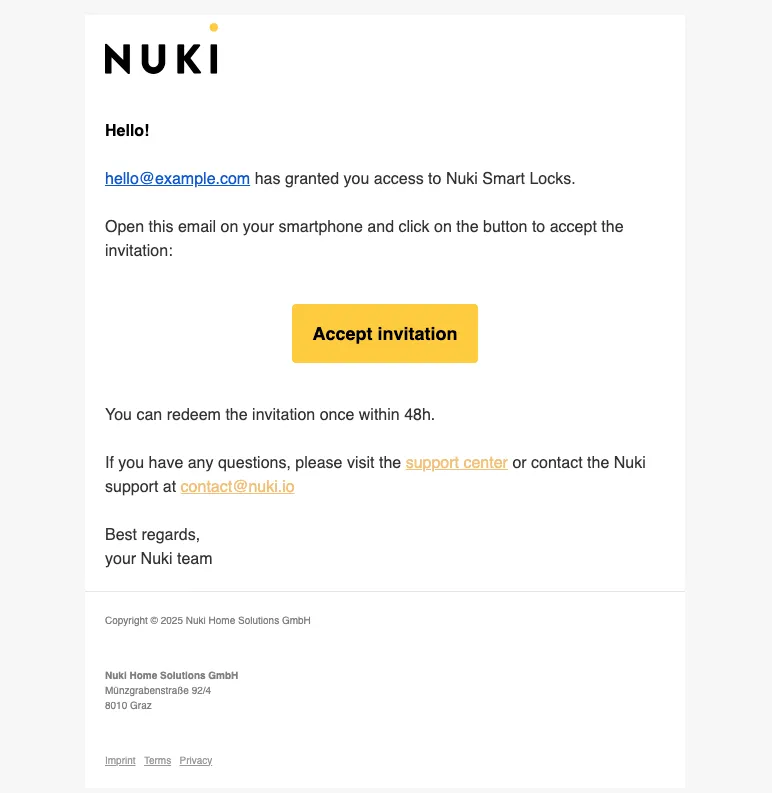
Authorisations are not automatically deleted after the guest has checked-out, so make sure to delete the smartlock authorisations once they are no longer required.
Create a keypad code for my guest
Section titled “Create a keypad code for my guest”A keypad code is created in the same manner and with the same coniderations as a normal app invite.
When creating our smartlock authorisation, we must additionally define a "type" value of 13, as well as defining the keypad "code".
Detailed instructions can be found with the generic API examples.
Create an app invite code, but don’t send it to my guest
Section titled “Create an app invite code, but don’t send it to my guest”If you would rather communicate the check-in instructions directly with your customer, you can use the dedicated advanced smartlockAuth endpoint to create an app invite. The request payload is the same as per the previous example.
This endpoint will cause an API-triggered webhook to be sent, with a payload including an inviteCode.
{ "inviteCode": "ABC-DEF-GHI", "detail": [ { "smartlockId": 123456789, "success": true, "id": "68cbe8a..........b5b12201", "authId": 987654321 } ], "type": "AuthCreation", "requestId": "68cbe8a..........5b121ff", "success": true}This invite code can now be forwarded to the guest for them to redeem in their smartphone app.
This invite code is still only valid for 48h, so we recommend creating and forwarding the invite code approximately 24 hours before check-in to the guest.